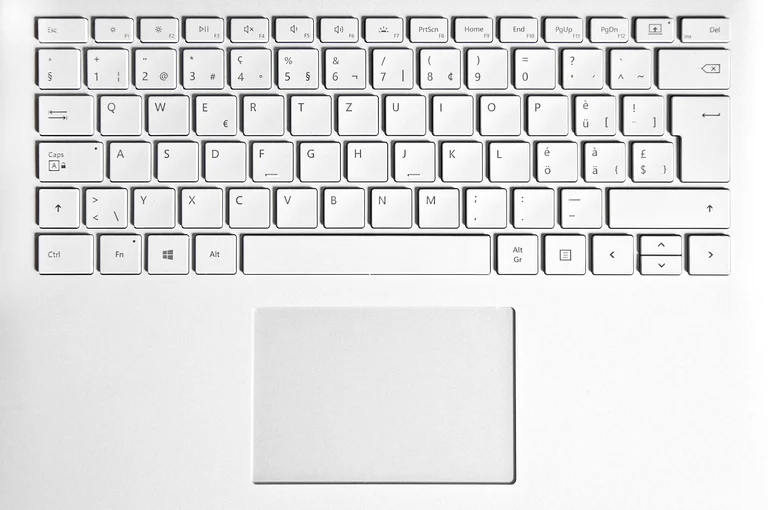
在 Mac 上截圖非常簡單!以下是幾種你可以使用的方法:
- 使用鍵盤快速鍵:
- 整個螢幕: 按下 Shift-Command-3。這會截取整個螢幕,並以 PNG 檔案儲存到桌面。
- 選取範圍: 按下 Shift-Command-4。游標會變成十字準星。點擊並拖曳,選取想要截取的區域,放開滑鼠按鍵就會儲存截圖。
- 特定視窗: 先按 Shift-Command-4,再按 空白鍵。游標會變成相機圖示。將游標移到想截取的視窗上點擊,截圖就會儲存到桌面。
- 使用 Screenshot 工具:
- 開啟 Launchpad,找到 Screenshot 應用程式。
- 你會看到一個包含多種選項的面板:
- 截取整個螢幕: 點擊第一個按鈕。
- 截取視窗: 點擊第二個按鈕,再點擊你想截取的視窗。
- 截取部分螢幕: 點擊第三個按鈕,然後拖曳框線選取想要截取的區域。
- 錄製整個螢幕: 點擊第四個按鈕。
- 錄製部分螢幕: 點擊第五個按鈕,然後拖曳框線選取想錄製的區域。
- 你也可以使用 Options(選項) 按鈕來設定倒數計時、顯示滑鼠指標,並選擇截圖的儲存位置。
- 使用 Touch Bar(適用於 MacBook Pro 使用者):
- 按下 Command-Shift-6,就能截取 Touch Bar 的畫面。
額外小技巧: 如果你想把截圖複製到剪貼簿,而不是儲存到桌面,只要在按下其他組合鍵的同時,一併按住 Control 鍵即可。舉例來說,要複製整個螢幕的畫面,按下 Shift-Command-Control-3。
參考資料
- Take screenshots or screen recordings on Mac – Apple Support(在 Mac 上截取螢幕截圖或螢幕錄影-Apple 支援)
- Taking a Screenshot on Mac: 4 Simple Ways to Do It – CNET(在 Mac 上截圖:4 種簡單做法-CNET)
- Keyboard Shortcuts to Capture a Screen Shot with Mac OS X – ITG Computing Support | Institute for Advanced Study(用 Mac OS X 截圖的鍵盤快速鍵-ITG 資訊支援|高等研究院)
- How to take a screenshot on a Mac. hold down, ⌘ command, and, shift, and press, # 3, = Your Mac captures the entire screen and saves it as a file on the …(如何在 Mac 上截圖:按住 ⌘ command 與 shift,再按 # 3,Mac 就會截取整個螢幕並存成檔案…)
- Shift Command 3 is the most straightforward option. This keyboard shortcut captures a screenshot of your entire screen and automatically saves …(Shift Command 3 是最直接的選擇:這組鍵盤快速鍵會截取整個螢幕的畫面,並自動儲存…)
延伸閱讀
- 我要怎麼在 Mac 上編輯截圖?
- 截圖有哪些不同的檔案格式?
- 我要怎麼從 Mac 分享截圖?
- 截圖和螢幕錄影之間有什麼差別?
- 我要怎麼用截圖做出 GIF?